

Learners who share a phone can now protect their account with a 4 to 6 digit PIN, lock it when they step away, and know it locks by itself if they forget. It works offline.
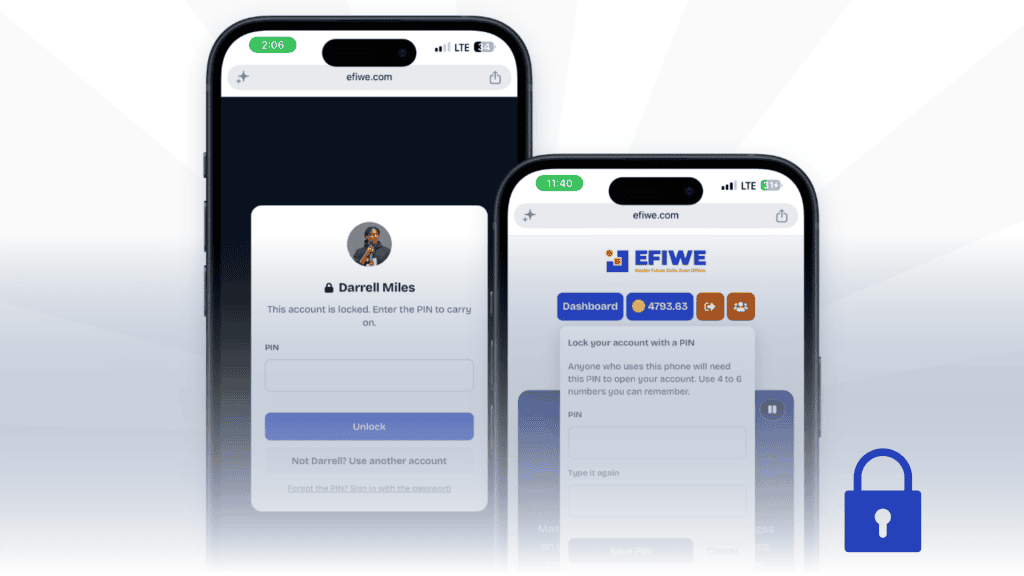
In many homes and classrooms, one phone is shared by a family, a class or a whole group. That is why Efiwe lets up to 20 learners save their accounts on the same phone and switch between them with a tap, picking up exactly where they left off.
Until now, that tap was all it took. Anyone using the phone could open any saved account, see the work inside and carry on in someone else’s name. A younger sibling could finish a challenge for you. A classmate could open your capstone. Learners told us they wanted their account to be theirs, even on a phone that isn’t.
What’s new
Every learner can now add a PIN to their account on a shared phone. With a PIN set, three things change:
- Switching in needs the PIN. Tapping a locked account in “Switch account” asks for that learner’s PIN before anything opens. A wrong PIN leaves the current learner’s work exactly as it was.
- Lock now. A learner who steps away can lock their account with one tap. A lock screen covers the page until the PIN is entered. Nothing is lost: unsaved progress stays where it is.
- Auto-lock after 10 minutes. If a learner forgets to lock, their account locks itself after 10 minutes without a tap, scroll or keystroke. The time keeps counting while the app is closed or the phone is asleep, so a phone picked up later opens on the lock screen.
The lock covers every page that shows a learner’s own information, including the learner dashboard, the group dashboard and the Code Editor. Accounts without a PIN work exactly as before.
How to set it up
- Sign in to your account on the shared phone.
- Tap the Switch account button.
- Tap Add a PIN.
- Choose 4 to 6 numbers you can remember, and type them twice. Easy-to-guess PINs like 1234 or 0000 are not allowed.
- Tap Save PIN.
From then on, tap the Switch account button, then Lock now, whenever you hand the phone to someone else. You can also change your PIN or turn it off from the same place. Both need your current PIN.
When it’s someone else’s turn, or you forget your PIN
- Passing the phone on. On the lock screen, the next learner taps “Not [name]? Use another account“, chooses their own account and enters their own PIN if they have one. The locked account stays locked, and its progress is saved before the switch.
- New to this phone? From the same screen, “Add another account” lets a learner sign in for the first time.
- Forgot your PIN? Tap “Forgot the PIN? Sign in with the password” and sign in with your account password. Your old PIN is removed, your progress is kept, and you can set a new PIN.
- Wrong PIN five times? After 5 wrong tries, only the account password can open it. This stops a classmate from guessing their way in.
Closing the password window without signing in leaves the account locked. The PIN can only be bypassed with the password.
Private, and built for offline
Your PIN stays on the phone where you set it. It is never sent to Efiwe’s servers, and the digits themselves are never stored: the phone keeps only a scrambled version that can’t be turned back into the PIN.
Because the PIN is checked on the phone, locking and unlocking work without an internet connection. That matters in places where data is expensive or patchy, which is where shared phones are most common.
A few things to know:
- One PIN per phone. A PIN set on one phone doesn’t carry over to another. If you use two shared phones, set a PIN on each.
- Your password is still the key to your account. It always works, PIN or not, and it is how you get back in if you forget your PIN.
- What it protects against. The PIN keeps other people using the phone out of your account.
For schools and facilitators
If your learners share phones in class, a short routine at the start of a session helps:
- Each learner signs in once on the shared phone and adds a PIN.
- Remind learners to tap Lock now before handing the phone on.
- Tell them their password is how they get back in if they forget their PIN.
The group dashboard works the same as before. Facilitators still see each learner’s progress, assignments and work, whether or not the learner uses a PIN.
Try it today
Open any Efiwe program on a shared phone, tap the Switch account button, then Add a PIN. It takes less than a minute, and your work stays yours.
or