

Websites you build in the IDE can now go live on the internet with one button. The new Publish button puts your HTML, CSS and JavaScript project on a free .web.applink that anyone, anywhere, can open.
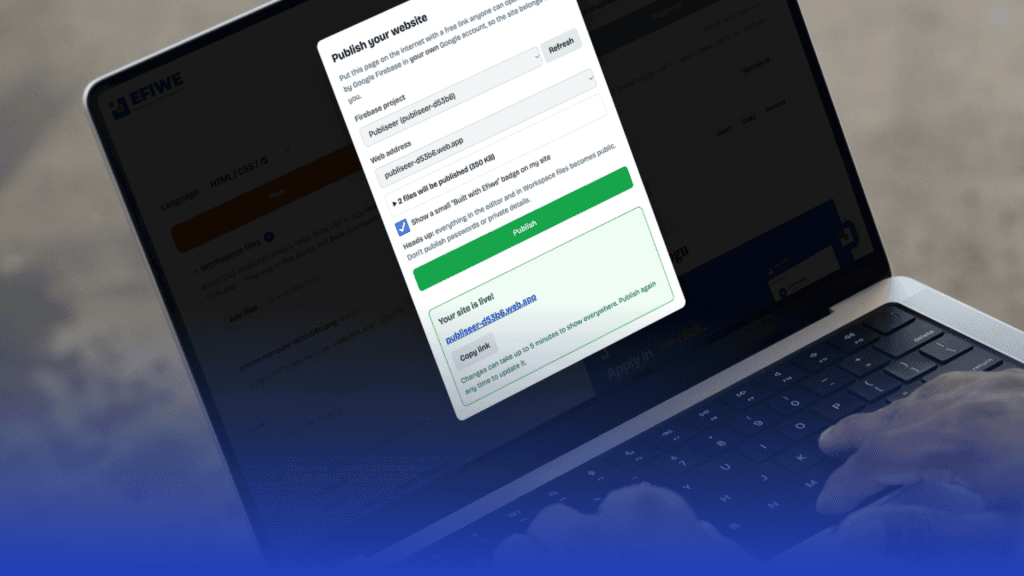
Until now, the IDE was where you built things. You could run your page, attach your own stylesheets, scripts and images with Workspace, and download the whole project as a .zip. But showing it to someone meant sending a file and hoping they knew what to do with it.
Publish closes that gap. And because real websites are organised into folders, Workspace now supports folders too. A learner who wrote their first line of HTML on a phone can now send a real website link to a friend, a teacher or an employer. No laptop, no paid hosting plan and no command line needed.
Publish works with the same Google account many of you already use to sign in to Efiwe. Your site is hosted by Google Firebase, in your own Firebase account.
How to publish your website
- Open the IDE at efiwe.com/ide and choose HTML / CSS / JS as your language.
- Build your page. Attach any CSS, JavaScript, images or fonts under Workspace files, in folders if you like.
- Tap the green Publish button at the top of the editor.
- Tap Continue with Google and allow Efiwe to publish to Firebase. You only do this once per visit.
- Pick a Firebase project. If you don’t have one yet, the Publish window links you to the Firebase console, where creating a free project takes about two minutes and needs no bank card. Then tap Refresh.
- Pick a web address, or create a new one, such as
my-portfolio.web.app. - Tap Publish. In a few seconds, your link appears, ready to copy, open and share.
Efiwe remembers the project and address you chose, so next time you only connect Google and tap Publish.
Workspace now has folders
You can now organise your project the way professional developers do, with your styles in css/, your pictures in images/ and your data in data/.
- Add folder uploads a whole folder from your device and keeps its structure. On a computer, you can also drag a folder straight onto the panel.
- New folder creates an empty folder. Choose where new uploads go from the “New uploads go into” list, or tap Upload here on any folder.
- Rename and Move let you tidy up later. Move shows a list of your folders, so it works just as well on a phone.
- Folders work in every language:
href="css/style.css"in HTML,open('data/scores.csv')in Python,include 'lib/db.php'in PHP. In SQL, a CSV or JSON file in any folder still becomes a table you can query. - Save downloads your project as a .zip with the same folders inside, so it runs on any computer exactly as it did in Efiwe.
Your existing projects keep working as they are. If your code says style.css but the file now sits in css/, the IDE still finds it.
What gets published
The code in your editor becomes your site’s home page, index.html. Every file you attached in Workspace goes live with it, so your stylesheet, scripts, images and fonts all load just as they did in the IDE.
Your folders go live exactly as you arranged them. css/style.css is published at yoursite.web.app/css/style.css, and a second page saved as blog/index.html becomes yoursite.web.app/blog/.
Publish also takes care of a common beginner trap. Inside the IDE, a link such as img/logo.png still finds your logo.png even if the file sits somewhere else. On a real web server, that path must exist exactly. Publish places each file at the path your code actually uses, so your links keep working once the site is live.
If your code links to a file you haven’t attached, the Publish window tells you before you go live, so you are not surprised by a broken image.
- Updating your site: change your code and tap Publish again. The same link shows the new version, usually within five minutes.
- Built with Efiwe badge: a small badge in the corner of your site shows visitors where you learned to build it. It is on by default, and you can switch it off with one tick before publishing.
Your site, your account
Your website lives in your Firebase project, not on Efiwe’s servers. You own it, you control it, and it stays online even if you stop using Efiwe.
- Free to start: Firebase’s free plan needs no bank card, gives you HTTPS automatically and lets you add your own domain later.
- Efiwe never sees your Google password. Google asks your permission directly, and Efiwe only holds that permission while the IDE page is open.
- You can revoke it any time from the security settings of your Google account.
- Think before you publish: everything in the editor and in Workspace files becomes public. Never publish passwords, phone numbers or other private details.
Good to know
- HTML, CSS and JavaScript only, for now. Firebase Hosting serves websites, not running programs, so Python, SQL and PHP projects can’t be published this way. Keep saving those as files.
- Not during capstones. Capstone projects must be written and submitted inside Efiwe, so Publish and Save are switched off on capstone pages.
- Needs a connection. You can build offline as always, but publishing needs internet access.
From learning to shipping
Efiwe was built on one belief: talent is everywhere, but opportunity is not. More than 23,000 learners across 162 countries now practise coding on Efiwe, many of them on a phone. Publish means the work they build here no longer has to stay on that phone.
“A portfolio link is often the first thing an employer or a client asks for. Our learners have been building real websites for months. Now they can show them to the world, from the same device they learned on.” —Chidi Nwaogu, Co-founder and CTO, Efiwe
Open efiwe.com/ide, build something you are proud of, and tap Publish. Then share your link with us. We would love to see what you build.
or